
Welcome
Sign in to your account

Enter your email and we'll send a one-time code for instant access.
With creative ideas and thorough marketing research, desktop laser engravers have evolved into home-ready, out-of-the-box, and easy-to-use machines, shining in DIY spaces like souvenir shops, craft shows, and your own home. But for a beginner or newcomer, is it necessary to buy a $3,000+ laser engraver? No! And that’s exactly what we offer with em-smart desktop laser engravers.
Let’s walk through buying a laser machine step by step:
First, let’s talk about the common laser types used in desktop DIY projects: fiber, diode, CO₂, UV, and IR lasers. Fiber lasers can be further split into standard fiber (using Raycus or Max laser sources) and MOPA lasers (with JPT laser source).
If you’re a metal lover, a fiber laser engraver is definitely your go-to choice—followed by IR lasers. Since metals reflect the 1064nm wavelength well, fiber lasers excel at metal engraving and cutting. But one thing to note: desktop laser engravers can’t compete with 100W industrial machines. Engraving metals up to 2mm deep is fine, but 5mm? Hardly—and it might damage your machine.

Plus, MOPA lasers let you add color to metal surfaces—like a painting from your mind, drawn by the machine.
Wood artists, keep your eyes on CO₂ and diode lasers. Wood engraving is often the first project for laser users, not only because of affordable laser engraver options, but also because materials are easy to find. Even a leaf can be engraved with a diode laser. Common non-metallics like wood, acrylic, leather, plastic, glass, and fabric are all suitable. Unfortunately, inside-crystal engraving—which is trending right now—can’t be done with fiber or diode lasers.

Once you’ve decided to get a desktop laser engraver, you’ll have your own basic criteria: budget, compatible materials, work area, essential functions, and ease of use. Here’s what else to consider:
You’ll find everything from a 1.2W IR beginner laser engraver to a 100W fiber model like the OMTech MOPA. For laser engraving for beginners, 20W is a great laser power choice—strong enough for engraving and light cutting, making it a best beginner laser engraver sweet spot. If you plan to do a lot of cutting, consider a 50W+ laser engraver machine. Remember: higher power usually means a higher price.
A laser engraver isn’t a simple electric toy—it combines power distribution, optical systems, control systems, and more. So when something goes wrong, can your supplier fix it within 1–2 days? Do they provide clear manuals? When investing in a higher-priced tool like a laser engraving machine for beginners, always factor in after-sales service.
Most brands include their own software for cutting and engraving, but there’s a catch. While proprietary software can be user-friendly, it may limit advanced or professional steps. That’s why many manufacturers also ensure compatibility with LightBurn. On YouTube, you’ll find most creators teach with LightBurn—meaning plenty of helpful tutorials are available online for your beginner laser cutter.

Look for feedback from real users who aren’t paid by the brand. They’re the ones who can give you honest insights into the machine’s performance as a best laser cutter for beginners. Join Facebook user groups to see what people are making and saying.

Is the machine truly “out-of-the-box” ready? Are there must-have accessories you’ll need to buy separately for your best affordable laser engraver? Aside from a rotary attachment (essential for laser engraved tumblers and cylinders), many accessories can be substituted—even simple tape often works.
Even a 20W desktop laser engraver for beginners requires safety attention. Laser safety goggles, a protective enclosure, and a dust extraction system should be on your checklist.
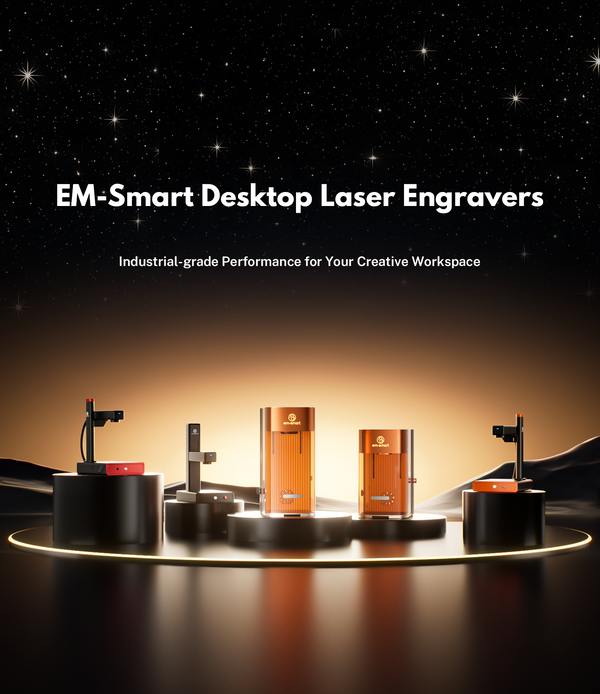
Let’s pick your ideal starter machine from em-smart’s lineup. We’re entering three “horses” in this race—all excellent beginner laser engravers for starting your laser journey.
em-smart Dual SE is the brand new laser nova released in 2025. We add a 800W smart camera in Dual, through which users can engrave with more ease. For the budget, a 20W dual laser engraver with $2,999 MSRP now sells with $1,899($1,100 off), definitely the best timw to get one.

1. Free LightBurn license included in every order. And in EM-Smart Resource, we provide users with LightBurn installation tutorials and free laser cut files download.
2. Built-in laser safety enclosure, no extra payment. Along with our free laser safety goggles, bringing your eyes with double safety guarantees.
3. Dual also has effective dust ventilation which is friendly for engraving environment.
4. Maximum 200*200mm work area with 150mm working height allows every creator to do bulk engraving and middle area laser cutting.
5. 300+ masterials unlock, you have ideas, dual SE starts the action.
1. The best seller in EM-Smart series. One of its pros is that EM-Smart Basic does 180° rotary for unlimited working height.
2. Basic has the world's Smallest (7 mm) Galvo System. With such system, you can engrave fine and detailed engraving lines.
3. Up to 15,000 mm/s engraving speed with ±0.001mm precision, help you do crafts fast and better.
4. Safety guaranteed. All EM-Smart laser engraving machines comes with a pair of laser safety goggles for eye protection, let alone the themral protection and emergency stop.
The em-smart Nova is renowned for its ease of use and versatility. It's a 20W/25W fiber laser engraver that works well with materials, including stainless steel, aluminum, brass, leather, plastic and so on. And allows you to start creating right out of the box. Plus, its folding desgin makes it perfect for beginners using and taking everywhere, with 8.5kg only!

1. As the world's first folding desktop laser engraver, it only weighs 8.5KG, and no assembly required, real out-of-box-use.
2. 20W fiber laser output is enough for laser engraving at home, capable in marking, engraving and laser cutting.
3. 0.002mm engraving accuracy for high percison need, like compliacted pattern engraving or photo laser engraving.
4. Up to 10,000mm/s engraving speed with 110*110mm work area, ideal for highly effective engraving processing.
If portability and foldability matter, go with the Nova. If you have unique engraving ideas—like putting a logo on a trunk—the Basic clears the way. Both offer 20W/25W power and perform similarly, but the Basic has a higher speed limit (15,000 mm/s) and finer accuracy (0.001 mm), making either one a best laser engraver for beginners depending on your priority.
EM-Smart has a vibrant Facebook community where users share tips, tutorials, and projects—making it easier for beginners to get started. Online resources and support forums are invaluable for troubleshooting and learning. Engaging with others helps you unlock more creative possibilities with your laser engraver for beginners.
Machines like the Nova are truly out-of-the-box: just plug in and connect to your computer to get started. The Basic requires one extra step—attaching the laser head to the support rod—but don’t worry, the manual guides you through it! The Dual SE comes fully assembled, but before first use, don’t forget to remove the four screws under the field lens—they’re there to protect the lifting system during shipping.
Once powered on, the key step is connecting to LightBurn. We provide detailed tutorials and technical support. Here’s a quick overview:
The USB includes the LightBurn package and an “EZCAD 2 with Driver” folder. First, install LightBurn. After installation, select “Install Ezcad2 driver (used by galvos).”

Right-click “My Computer” → “Device Manager” → “Universal Serial Bus devices.” Make sure your machine is connected via USB at this point; you should see “USBLMCV2.” Right-click it, choose “Update driver,” and browse to the “driver” folder inside “EZCAD2 with Driver.” Select the appropriate version (we recommend “64 bits Driver” for most systems).

Click “Device” in the lower right, then “Find My Device.” It may take 1–3 minutes before your machine appears. Click “Add device.” On first connection, you’ll be prompted to import “markcfg 7”—this file is also in the “EZCAD2 with Driver” folder.


Name your EM-Smart device (so you won’t mix it up later). Enter the max work area (e.g., 200 × 200 mm for the Dual SE). Click import; “Ready” in the corner means success.


Adjust the port settings as shown in the guide. Note: “IPG_YLP” is for standard engraving, while “IPG_YLPM” is for color-marking laser sources.


We bet you already have brilliant ideas waiting for an EM-Smart laser engraver. We can’t wait to see your unique designs! If you need inspiration for your laser engraving for beginners journey, start with:
A quick, satisfying project that shows off your machine's ability to create personalized gifts.
A practical, heartfelt first project that puts your engraver’s precision to work in minutes.

Create instant heirlooms and share the DIY spirit during the festive season.
By choosing the right laser engraving machine for beginners and understanding its features, you can embark on a rewarding journey of artistic expression and entrepreneurship. Whether creating personalized gifts or exploring business opportunities, the world of laser engraving is at your fingertips. Happy engraving!


